How to show YouTube Live chat on your stream
YouTube's own chat window is not designed to be captured — it is a full web page with headers, buttons and a white background. A chat widget solves this by reading the chat and drawing only the messages, on a transparent background.
Step by step
Find your YouTube channel or stream details
Open your settings page and look for the YouTube field. Depending on the widget this is your channel handle or the live video's ID — the settings page tells you which and shows an example.
Fill in Twitch as well if you multistream
Most chat widgets here accept both platforms at once and merge the messages into one list, with a small icon showing where each message came from. Fill in both fields and you get one chat box instead of two.
Build the link and add it to OBS
Add a Browser source, paste the link, set 1920 × 1080, and scale it in the scene.
Go live before you test
This is the part that confuses people: YouTube Live chat only exists while a stream is actually live. Testing against an offline channel shows an empty box and nothing is wrong. Start your stream, then send yourself a test message.
Why not just capture the YouTube chat window?
A window capture brings the whole page with it — white background, header bar, the input box — and it cannot be made transparent. It also re-flows whenever YouTube tweaks its layout. A widget reads the same chat and draws only the messages, so it sits cleanly over gameplay.
Merged chat and moderation
A merged overlay shows viewers one conversation, but moderation still happens on each platform separately. If you multistream regularly, keep both platform dashboards open on a second monitor even when the on-screen chat is combined.
Widgets that work with this guide
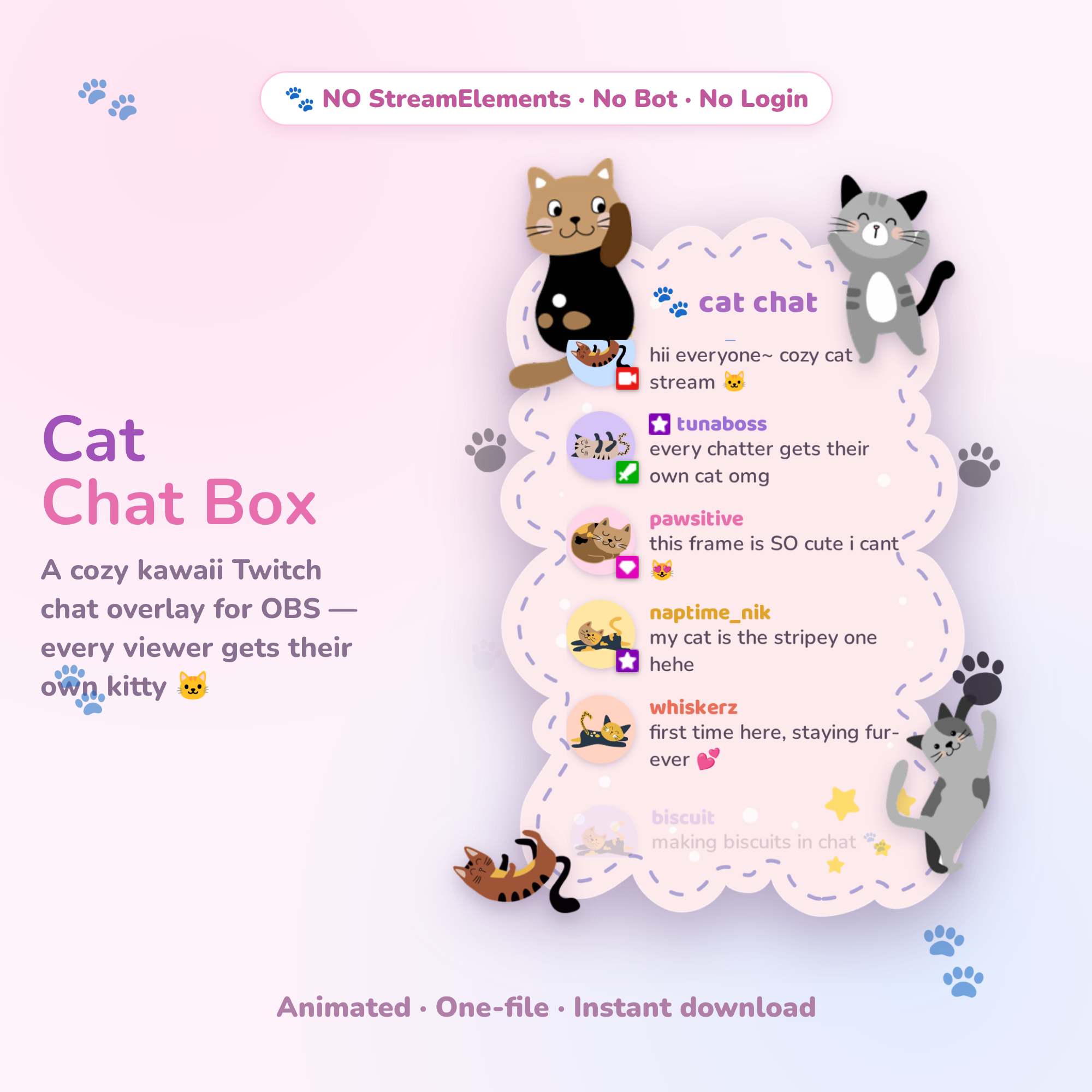 Try it live🎁 Free
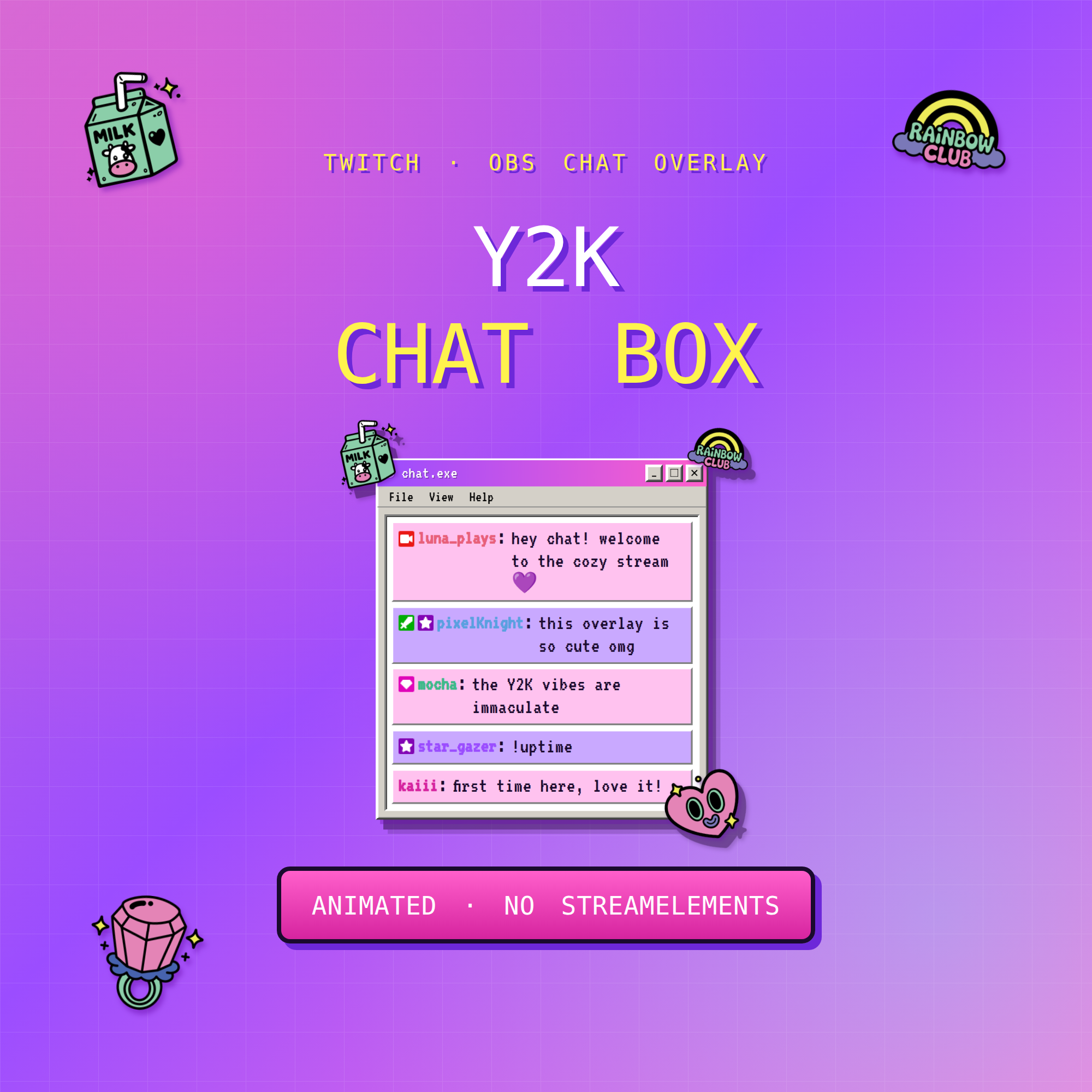 Try it live★ Best seller
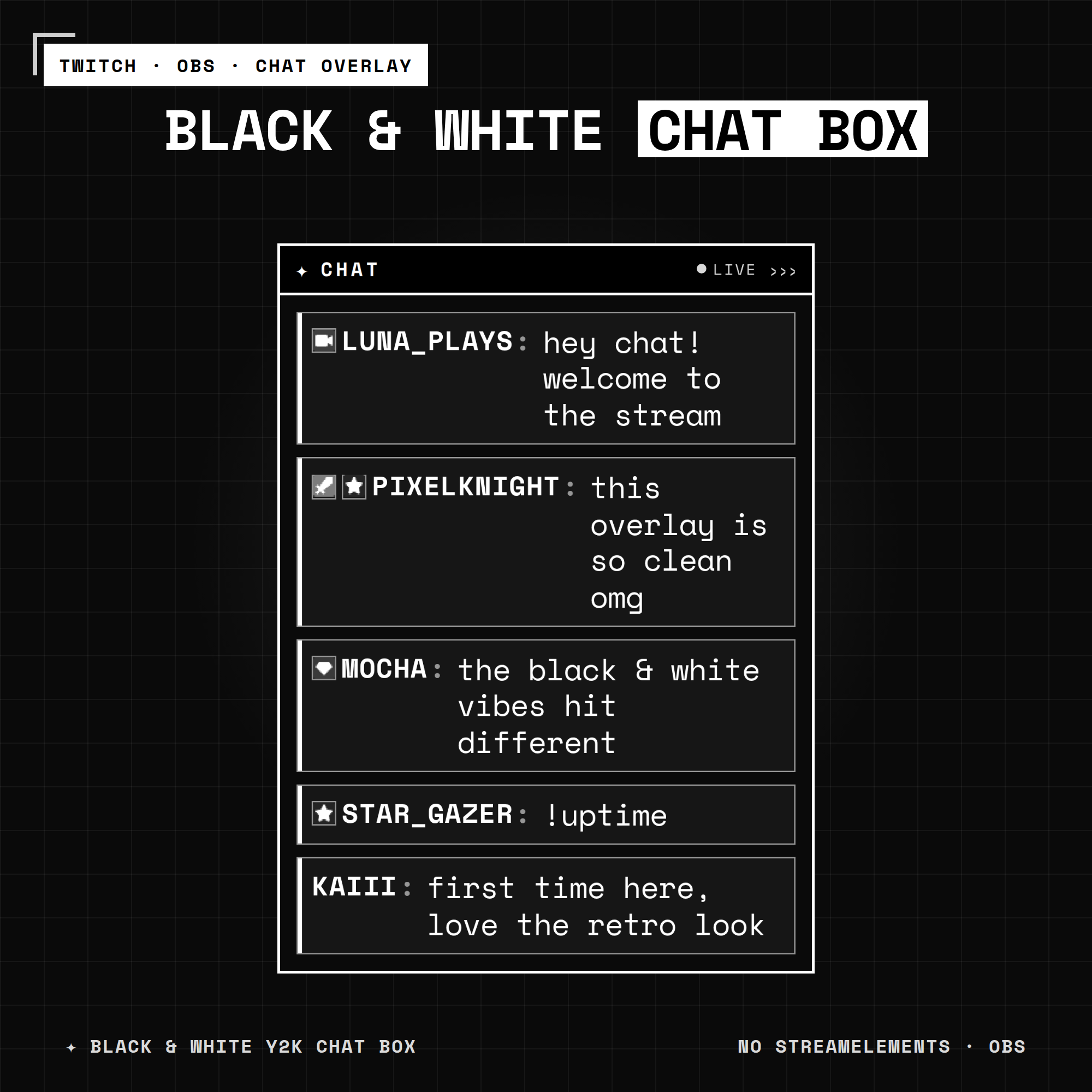 Try it live★ Best seller
Common questions
How do I put YouTube Live chat on my stream?
Use a chat widget as an OBS browser source and enter your YouTube channel or live video details in its settings page. Capturing the YouTube chat window directly brings the whole white page with it.
Can I show Twitch and YouTube chat in one overlay?
Yes. Most chat widgets accept both and merge messages into a single list with a platform icon on each message.
Why is my YouTube chat overlay empty?
YouTube Live chat only exists while you are actually live. Start the stream first, then test — an offline channel has no chat to read.