How to add a chat box to OBS
A chat box on screen is the cheapest way to make a stream feel alive: people who arrive mid-stream can see the conversation happening instead of a silent gameplay feed. OBS handles this with a Browser source, and once you know the three settings that matter it takes about two minutes.
Step by step
Open your widget's settings page
Every widget here comes with a small settings page. Open it in your browser, type your channel name, pick your colours, and it builds a ready-to-use link (or saves an .html file). Type the channel name exactly as it appears in your Twitch URL — no @, no spaces, no display-name capitalisation tricks.
Add a Browser source in OBS
In OBS, under Sources, click + and choose Browser. Give it a name you will recognise later, like Chat box, and click OK.
Point it at your widget
If you were given a link, paste it into the URL box. If you downloaded an .html file, tick Local file instead and browse to the file. Both work identically — the widget runs entirely inside the browser source.
Set the size to 1920 × 1080
This is the step most people get wrong. Set Width 1920 and Height 1080, then click OK and resize the box inside your scene by dragging its corners. If you shrink the browser source itself instead, the widget renders at a small size and then gets stretched up, which is why text ends up blurry.
Position it and lock it
Drag the chat box where you want it, then click the padlock next to the source in the Sources list so you can't nudge it by accident later. Chat boxes usually sit bottom-left or bottom-right, clear of game HUD elements.
Test it before you go live
Send a message in your own chat from your phone or another browser. It should appear within a second or two. If nothing shows up, the channel name is almost always the culprit — see the troubleshooting section below.
Do I need StreamElements or Streamlabs for this?
No. A chat box is just a web page that connects to your chat and draws messages. StreamElements and Streamlabs are one way to host that page, but they are not required, and using them means your overlay stops working whenever their servers have a bad day. The widgets on this site run from the file itself, so there is no account to connect and no third-party service in the middle.
Should I use a local file or a URL?
A local file keeps working even if your internet drops for a moment and loads instantly, which is why we recommend it. A URL is handier if you stream from more than one computer, because you paste the same link on each machine instead of copying files around. The widget behaves the same either way.
Why does my chat box look blurry?
Almost always the width and height. Set the browser source to 1920 × 1080 and scale it down in the scene. A browser source rendered at 400 × 300 and then blown up to fill a corner of a 1080p canvas will always look soft — OBS is enlarging pixels that were never drawn.
Widgets that work with this guide
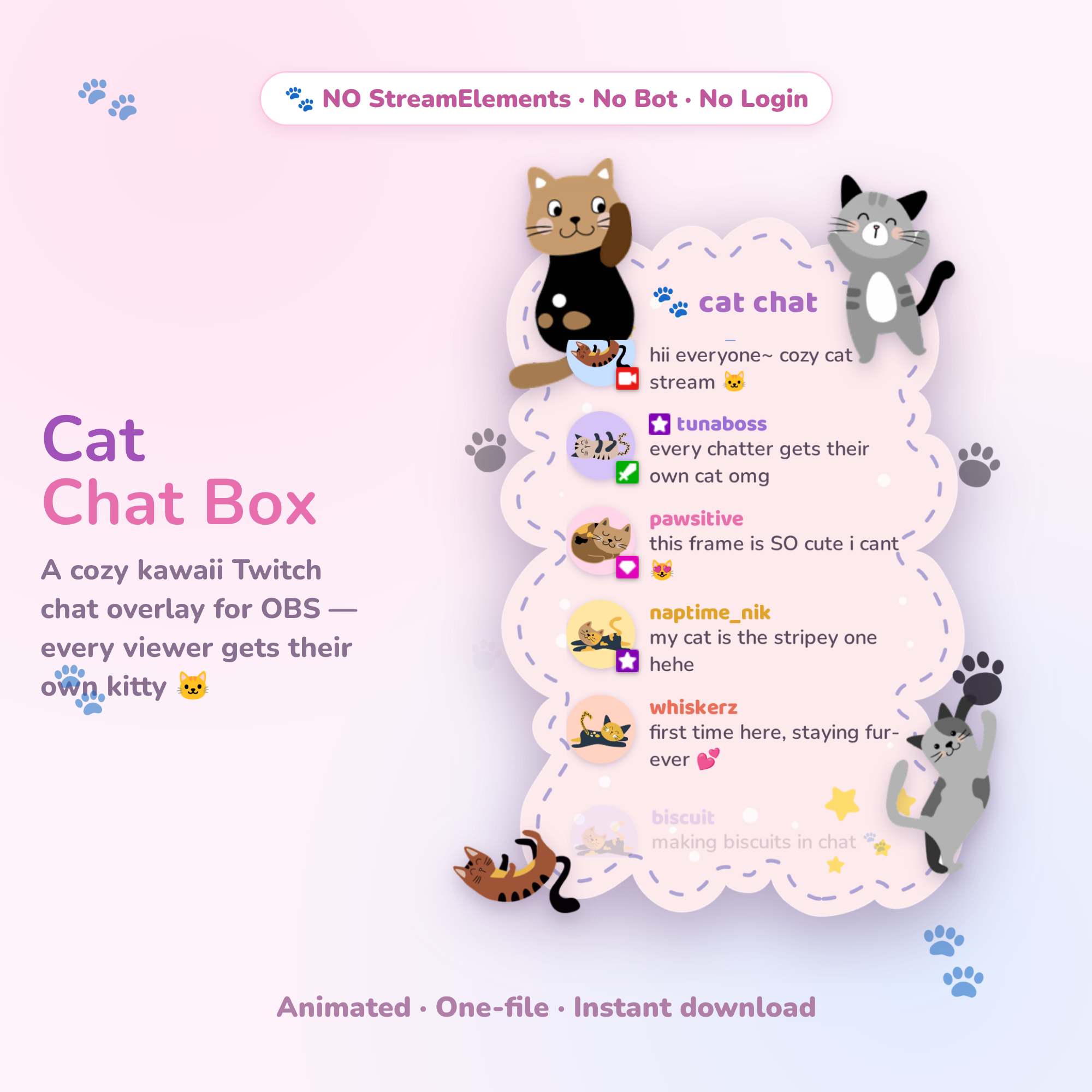 Try it live🎁 Free
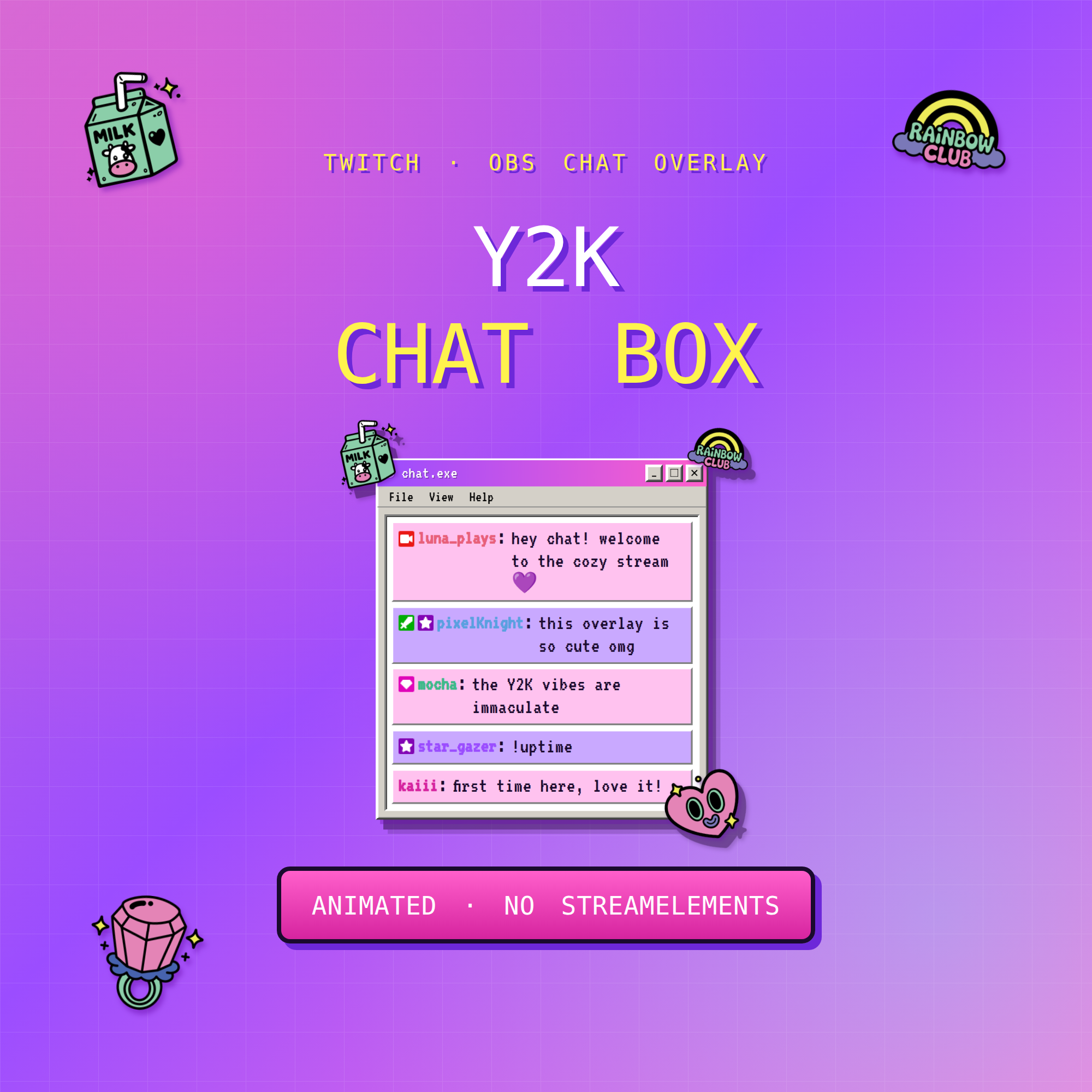 Try it live★ Best seller
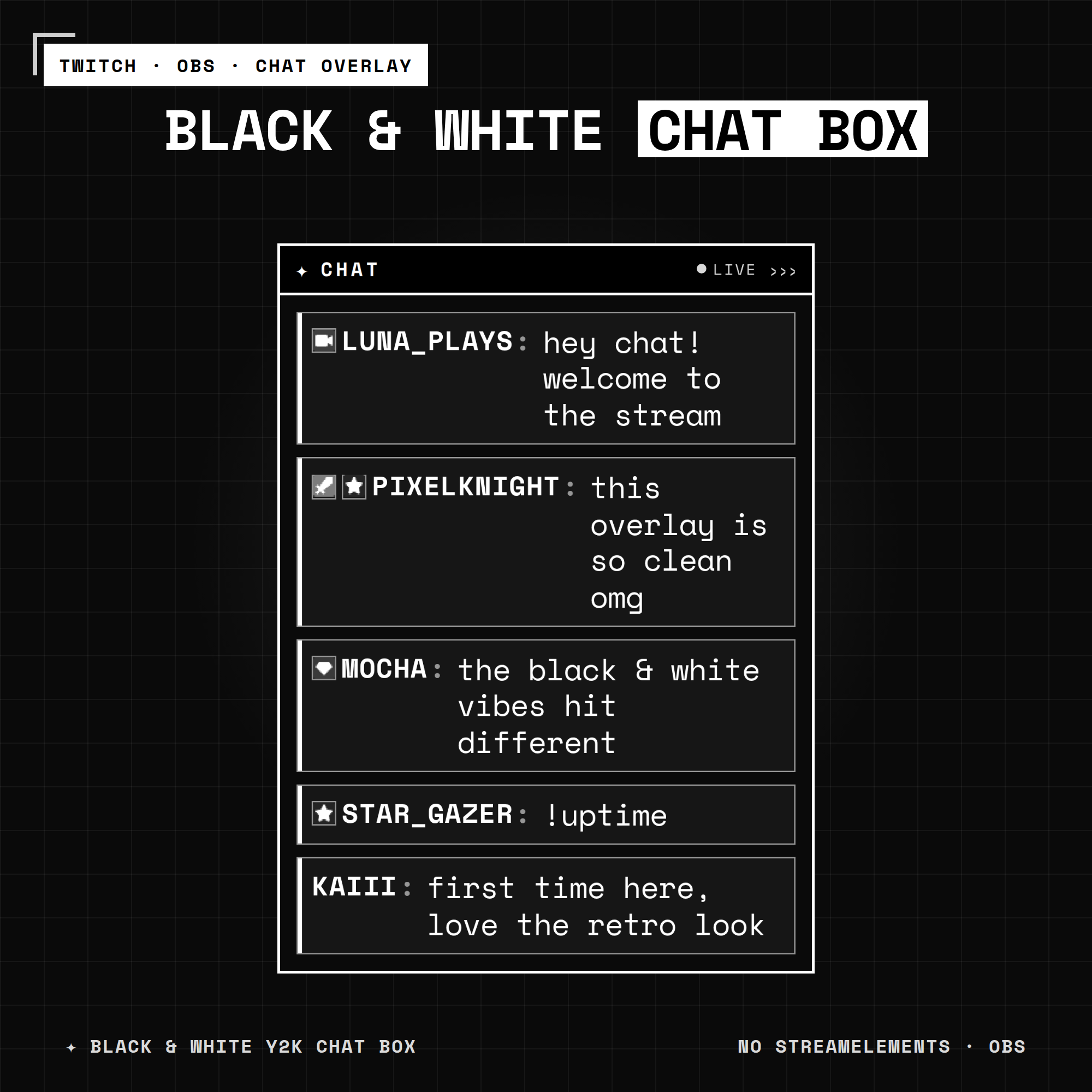 Try it live★ Best seller
Common questions
How do I add a chat box to OBS?
Add a Browser source, point it at your widget's link or local .html file, set it to 1920 × 1080, then resize it inside your scene. No plugin or account is needed.
Why is my OBS chat box empty?
The channel name is usually wrong. Use the name exactly as it appears in your Twitch URL, with no @ symbol and no spaces, then rebuild the link and refresh the source.
Does an OBS chat box work with YouTube too?
Yes. Most chat widgets read YouTube Live chat as well as Twitch — the settings page has a separate field for each platform.