How to add an overlay to Streamlabs Desktop
Streamlabs Desktop is built on the same engine as OBS, so any widget that works in one works in the other. The menus are named slightly differently, which is the only thing that trips people up.
Step by step
Open the Sources panel
In your scene, find the Sources panel and click the + button. Streamlabs shows a gallery of source types rather than a plain list.
Choose Browser Source
Pick Browser Source — not Widget. The Widget entries are Streamlabs' own hosted overlays and are tied to your Streamlabs account; a Browser Source can load anything, including a file on your computer.
Paste your link or pick your file
Paste the link your settings page built, or tick Local file and browse to the .html file you downloaded.
Set 1920 × 1080
Same rule as OBS: render at full canvas size and scale it down in the scene, rather than setting a small width and height. Anything else softens the text.
Arrange and lock
Drag it into position, then use the lock icon in the Sources panel. Remember sources are drawn top-first, so your overlay must sit above your game capture in the list.
Streamlabs settings that differ from OBS
Streamlabs keeps hardware acceleration for browser sources under Settings › Advanced too, but it is worded as Enable Browser Source Hardware Acceleration. Turn it off if a source shows solid black. The Shutdown source when not visible option exists here as well and causes the same blank-on-scene-change behaviour.
Can I use the same widget in both apps?
Yes — the file is not tied to either program. Plenty of people keep OBS as a backup and point both at the same folder of widgets.
Widgets that work with this guide
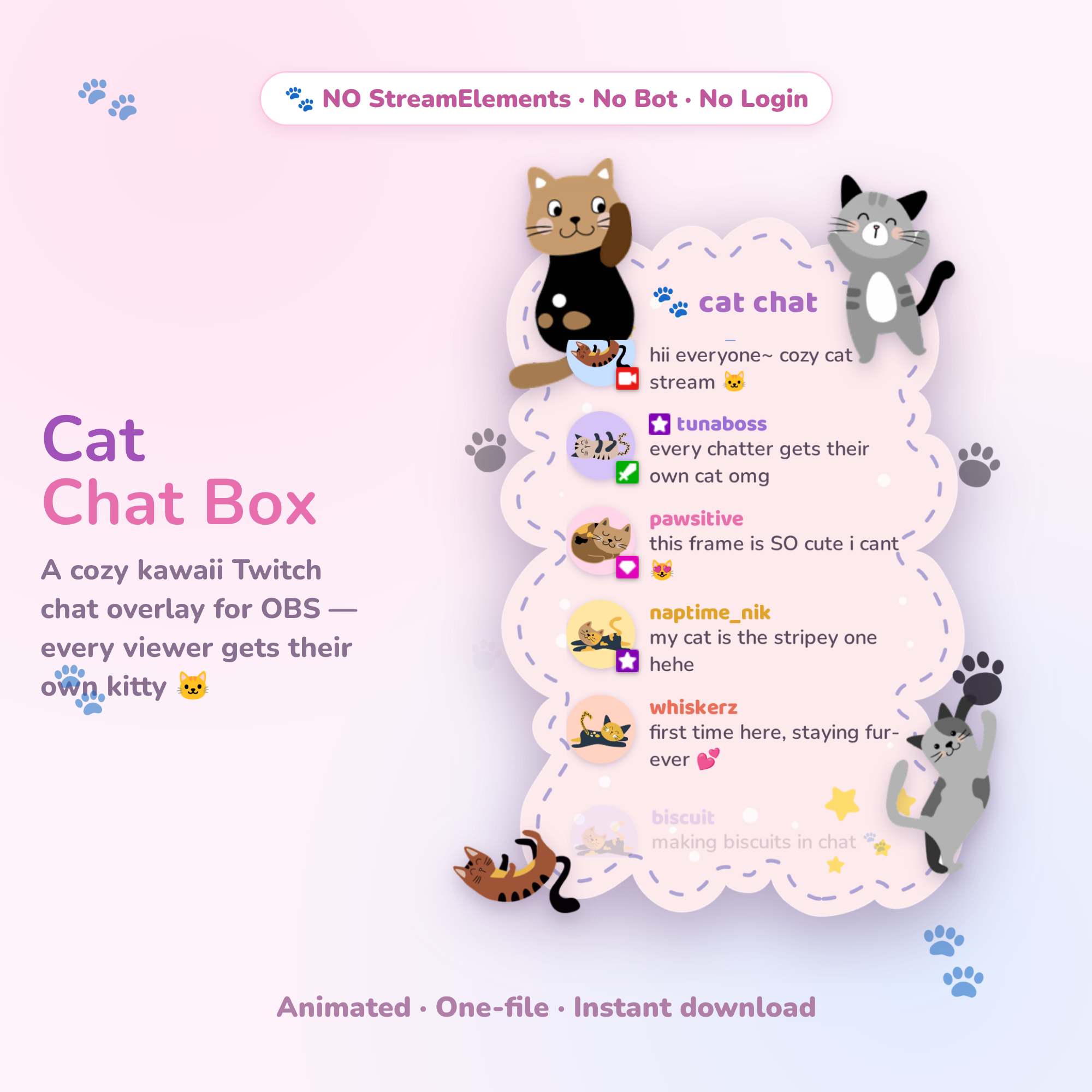 Try it live🎁 Free
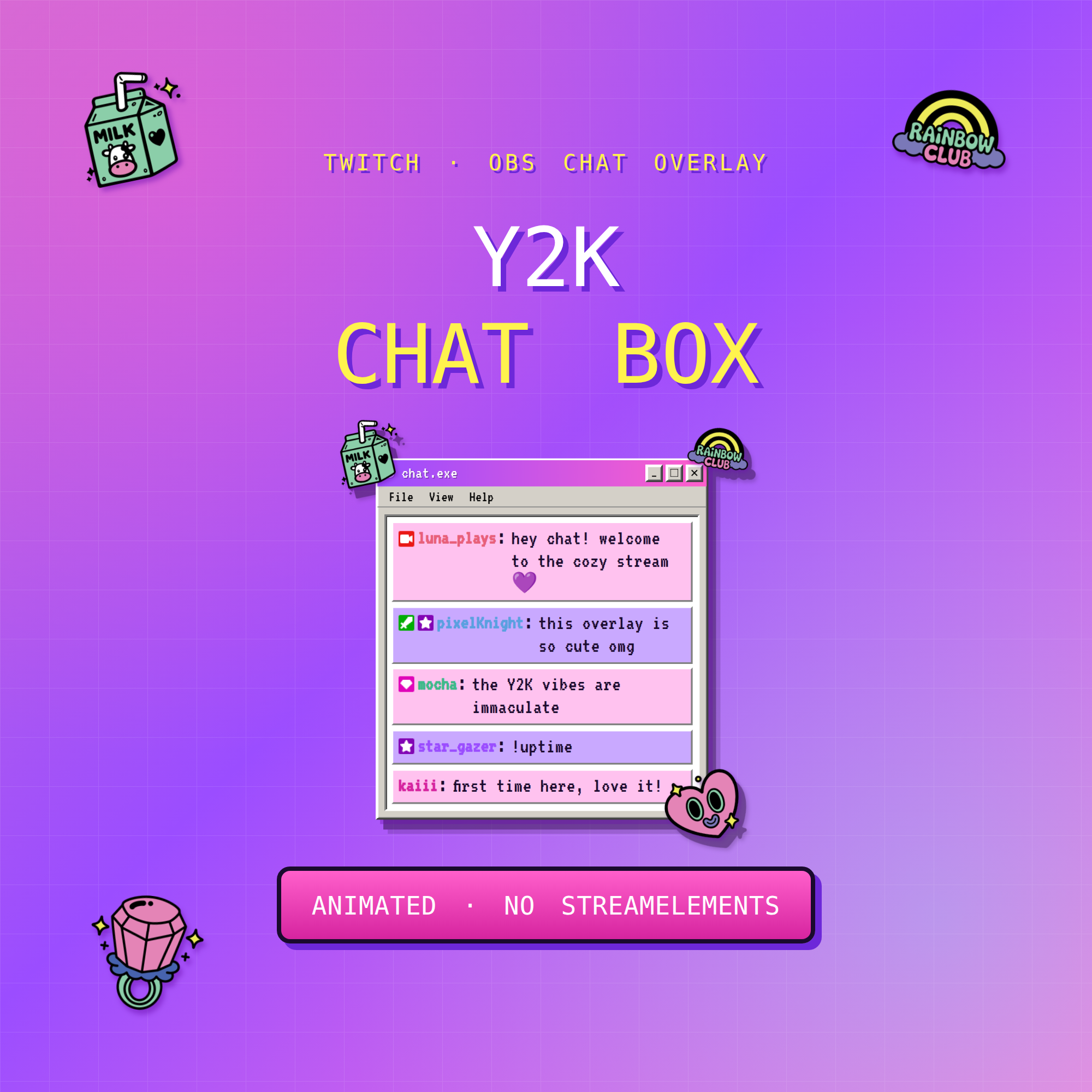 Try it live★ Best seller
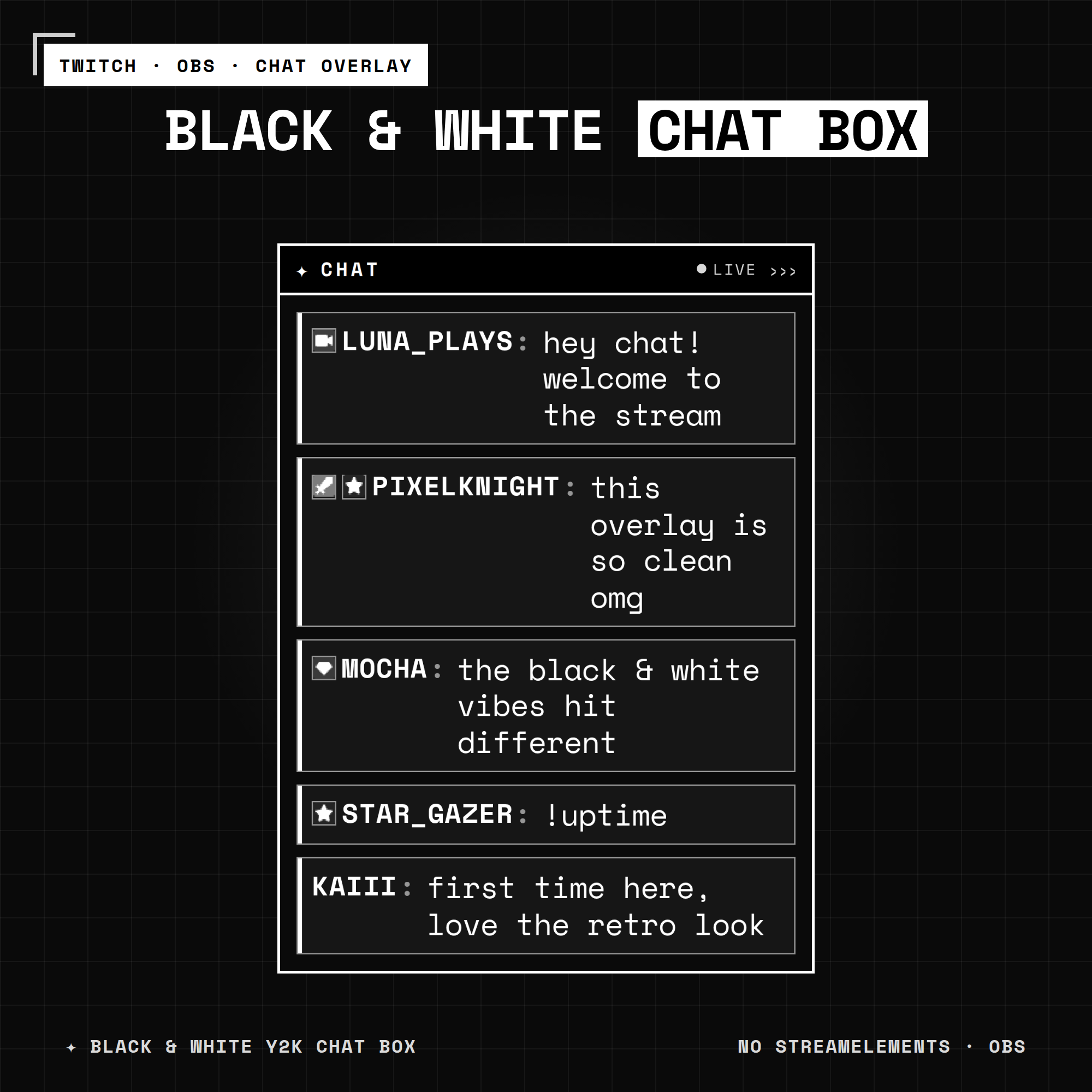 Try it live★ Best seller
Common questions
How do I add an overlay to Streamlabs?
Click + in the Sources panel, choose Browser Source (not Widget), point it at your link or local .html file, and set it to 1920 × 1080.
What is the difference between a Widget and a Browser Source in Streamlabs?
Widgets are Streamlabs' own hosted overlays and require a Streamlabs account. A Browser Source loads any page or local file, including widgets you own outright.